2. Event Filters
Event filters run after order filters and decide whether a specific shipping event is send to your email platform. While order filters control which orders enter the pipeline, event filters control which individual updates are sent.
How event filters differ from order filters
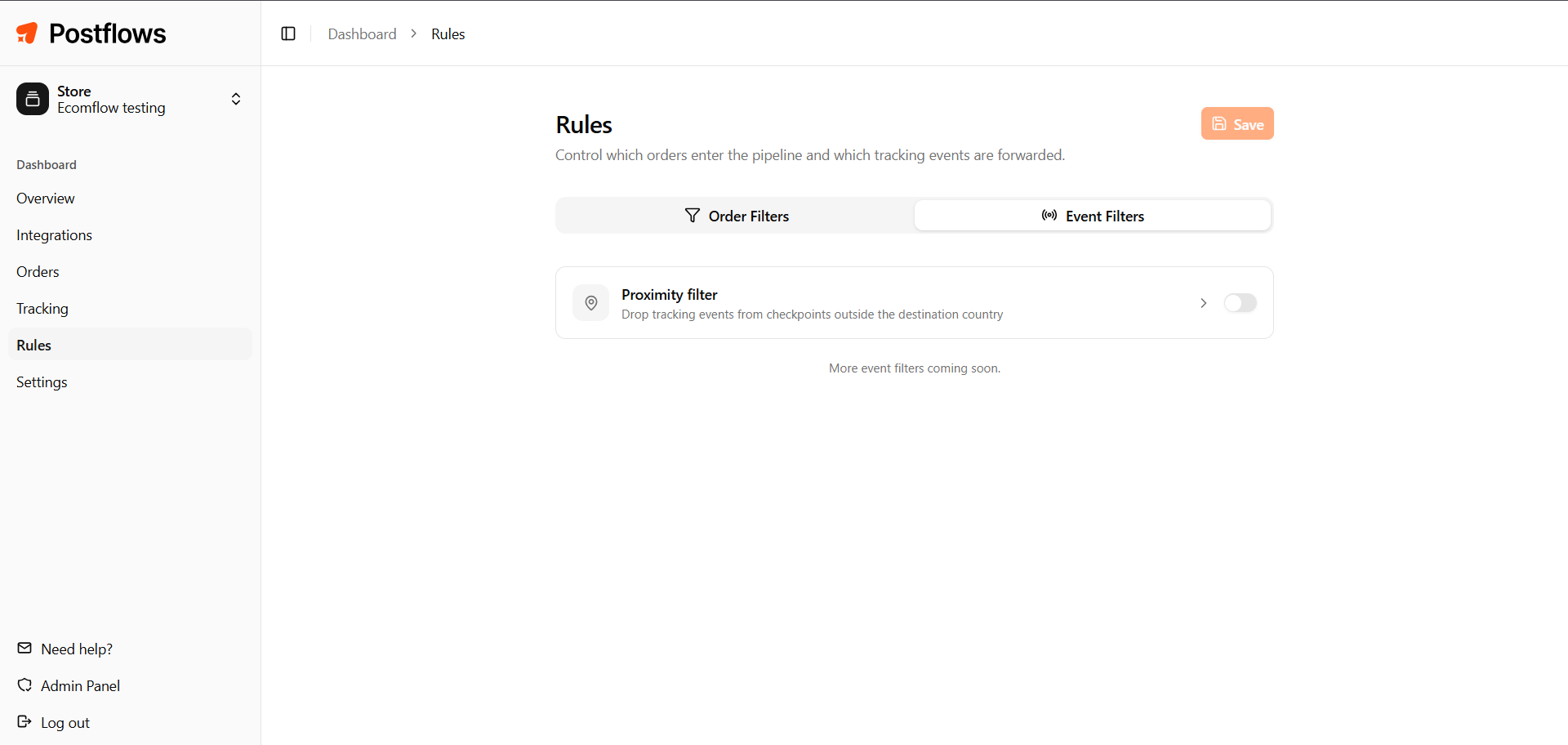
Proximity Filter
The proximity filter is the only event filter currently available in Postflows. It prevents shipping events from being send when the tracking checkpoint is in a different country than the shipping destination.
When to use this
International shipments often generate multiple "In Transit" updates while the package is still being processed in the origin country - before it has even left. These events can confuse customers who see notifications from a country they didn't expect.
Enabling same_country silently drops these origin-country events. Customers only receive notifications once the package is in the destination country's carrier network.
Example: A UK customer orders from a store that ships from Hong Kong. With proximity set to same_country:
Events from Hong Kong and intermediate hubs: dropped
Events from UK carrier network: send
Without the proximity filter, the customer would receive "In Transit" notifications for every carrier scan including those in Hong Kong.
Things to know
The proximity filter applies to all orders - it cannot be scoped to specific countries
If the checkpoint location is unknown, the event is send (Postflows defaults to sending)
The event is still received and logged in Postflows; only forwarding to your email platform is suppressed
How to configure the proximity filter
Go to Dashboard > Rules
Select the Event Filters tab
Toggle the Proximity filter on to enable or off to disable
Click Save
Changes take effect immediately for new events.
Related articles
Was this helpful?
Still need help? Share an idea