1. Tracking Page Builder Guide
The Postflows tracking page builder lets you create a fully branded order tracking experience that lives on your Shopify store. Customers enter a tracking number or order number to see live shipment status, checkpoints, and order details - all in your brand's style. This article covers the builder interface and how to customize your tracking page.
Opening the builder
Go to Dashboard > Tracking in the sidebar.
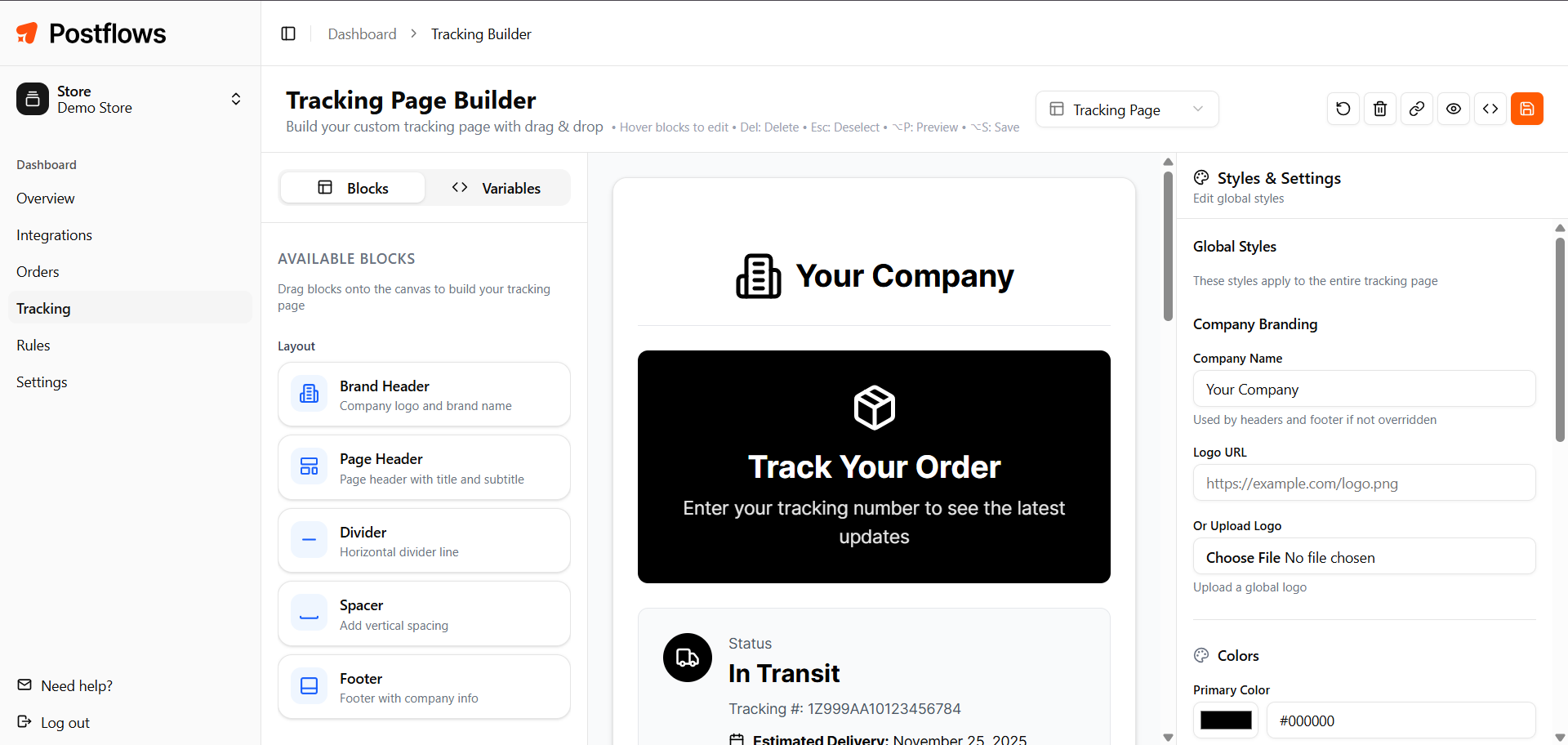
Builder layout
The builder has three panels:
Available blocks
Blocks are the building components of your tracking page. Add, remove, and reorder them from the Blocks tab in the left sidebar.
Search page blocks - The tracking page also has a search screen (shown before a customer enters their tracking info). It has its own block set: Search Form, Search Header, Brand Header, Text, Divider, Spacer, Custom HTML, Footer.
Default page structure
A new tracking page starts with this default layout:
Brand Header
Page Header
Status Card
Shipping Info
Text Block
Timeline
Order Items
Footer
You can reorder, remove, or add blocks to this structure.
Global styles
Use the Styles & Settings panel on the right to control the overall look of the page:
Per-block settings
Click any block on the canvas to select it. The right panel updates to show that block's settings:
Content - edit text, labels, and placeholder values
Style - override colors, sizing, and alignment for this block
Visibility - show or hide specific sub-elements within the block
Layout - change how content is arranged (list, grid, card, etc.)
Live preview
Click the Preview button (or press Alt + P) to see a full-screen preview of your tracking page.
Switch between viewport sizes in preview mode:
Press
Dfor desktop viewPress
Tfor tablet viewPress
Mfor mobile view
Press Escape to exit preview.
Keyboard shortcuts
Saving
Click Save or press Alt + S. Changes apply to your live tracking page immediately.
Note: Viewers (read-only role) cannot save changes. See Managing Team Members and Roles.
Related articles
Was this helpful?
Still need help? Share an idea