2. Embedding the Tracking Page in Your Shopify Store
The Postflows tracking page is embedded into your Shopify store as a theme app block. Once added, customers can track their orders directly on your store's domain.
Method 1 - Export Code (recommended)
This is the fastest way to add the tracking page. Postflows generates a direct link that opens your Shopify theme editor with the block already loaded.
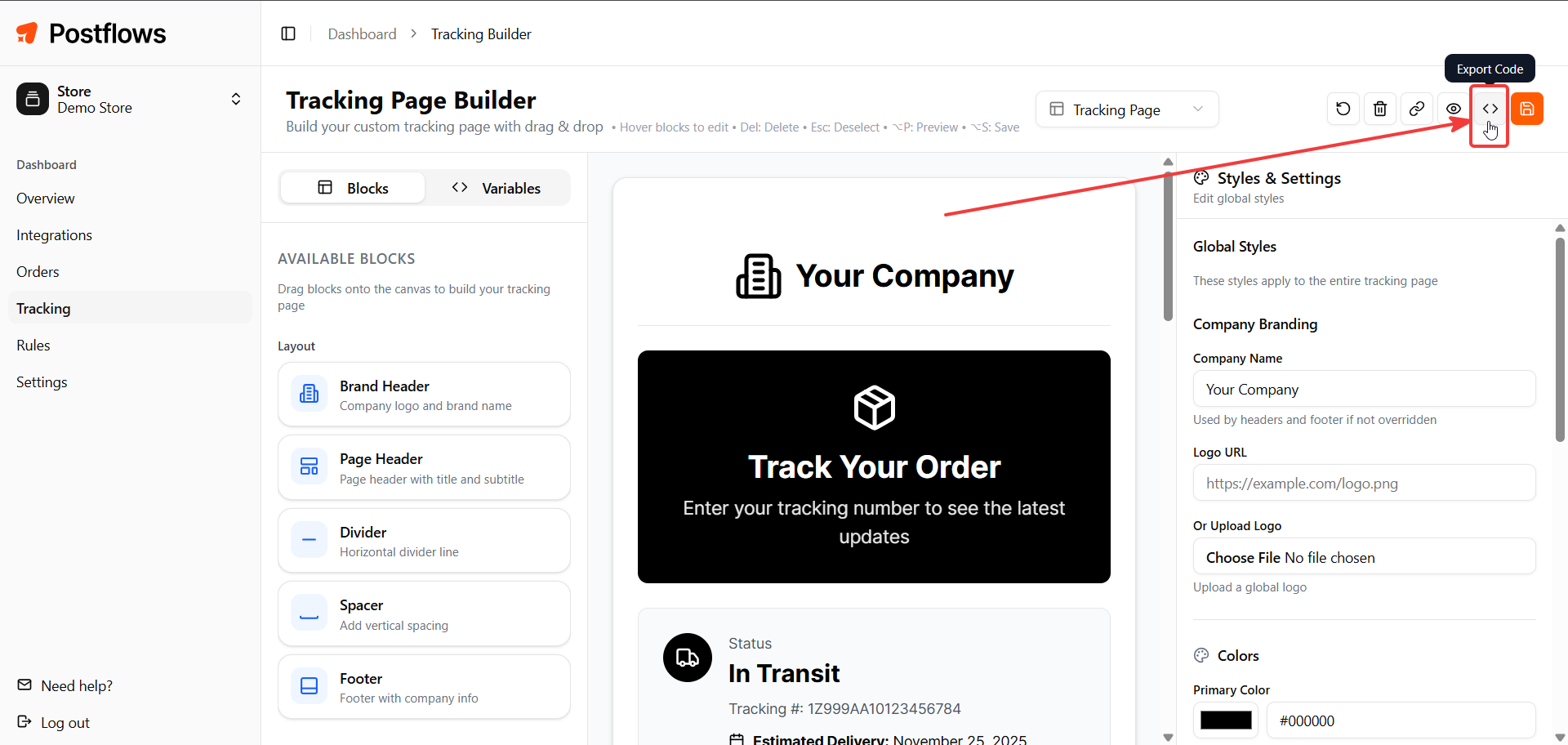
Go to Dashboard > Tracking
Click Export Code
In the dialog, click Add to Shopify Theme
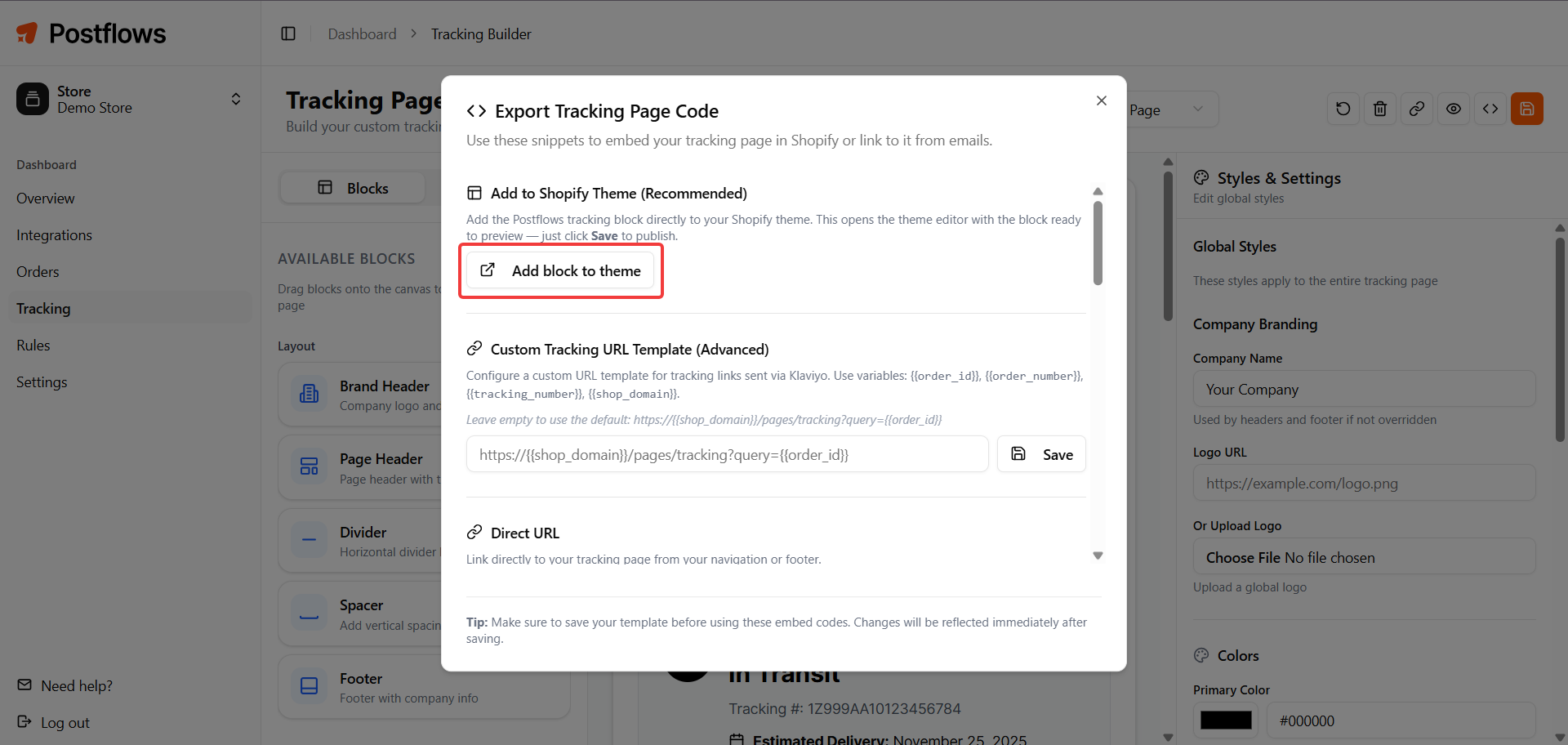
Your Shopify theme editor opens with the Postflows Tracking block pre-loaded in a new section
Click Save in the Shopify theme editor to publish
Method 2 - Add manually via theme editor
In your Shopify admin, go to Online Store > Themes
Click Customize on your active theme
Click Add section
Under Apps, find and select Postflows Tracking
Click Save
What the block looks like
In the theme editor: The block shows a placeholder with a package icon so you can position it without loading live tracking data.
On your live store: The block renders an iframe containing your fully branded tracking page. It auto-resizes to fit the content height.
Deep-linking from emails
The tracking page iframe automatically reads URL parameters and pre-fills the search form. This lets you link customers directly to their tracking info from shipping notification emails.
Supported parameters:
Example link for Klaviyo:
https://yourstore.com/pages/tracking?query={{ event.properties.order.name }}
This pre-fills the search with the customer's order number so they see their tracking results immediately.
Tracking page URL
Your tracking page is also accessible as a standalone URL (outside of Shopify embedding):
https://dashboard.postflows.io/tracking/embed/{store-slug}
You can use this URL directly in emails, navigation links, or anywhere you want to point customers to their tracking page.
Related articles
Was this helpful?
Still need help? Share an idea