2. Upgrading or Downgrading Your Plan
You can switch between Postflows plans at any time from Settings > Billing.
Who can change the plan
Only the store Owner or Admin can change the subscription plan. Viewers and Members do not have access to billing settings.
How to change your plan
Go to Settings in the sidebar
Select the Billing tab
Scroll to the Change Plan section
Find the plan you want to switch to and click Switch Plan
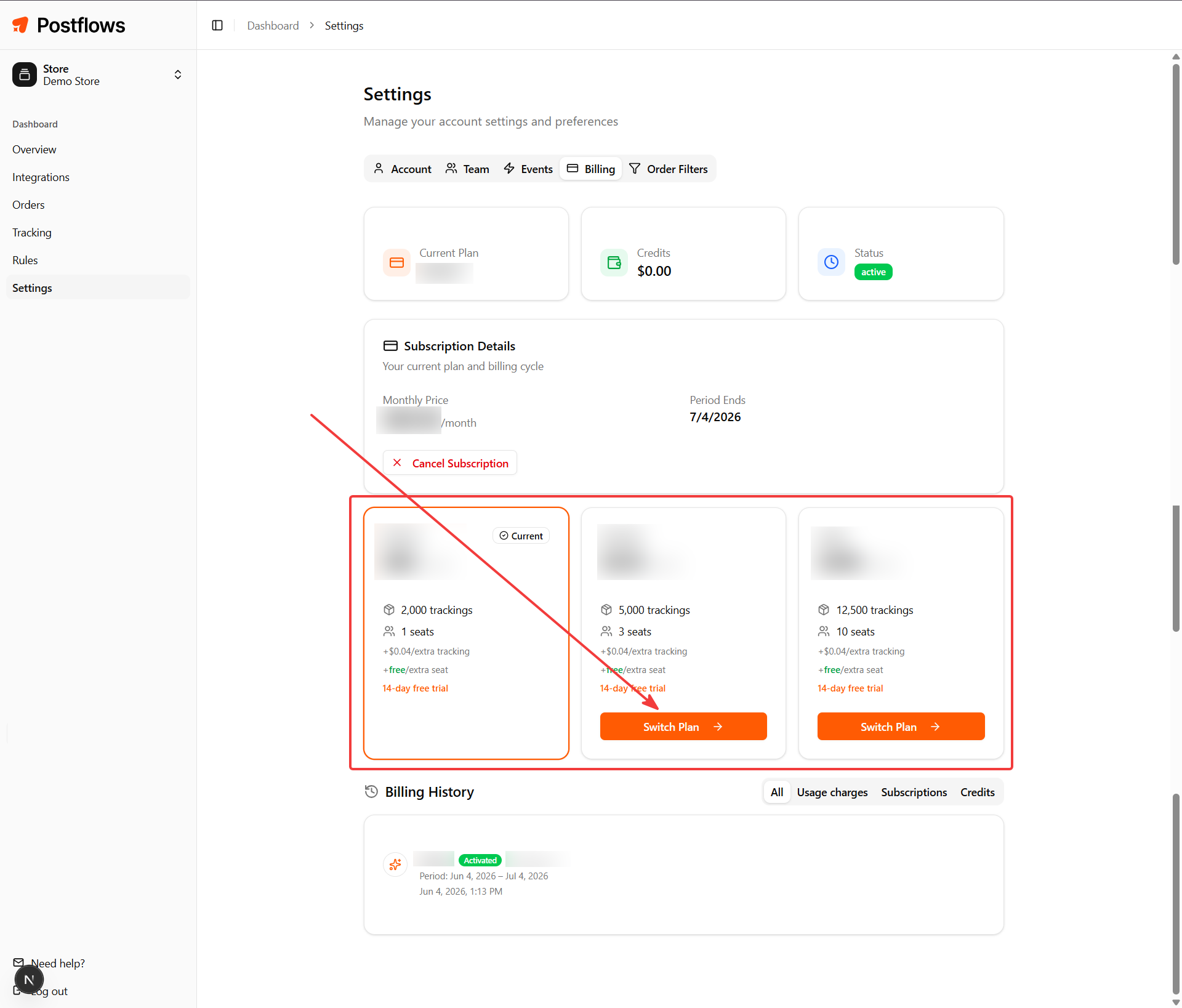
You'll be redirected to Shopify to approve the new subscription charge
Click Approve in Shopify
You're redirected back to Postflows with the new plan active
What happens when you switch plans
The previous subscription is cancelled immediately
The new plan starts immediately - a new billing cycle begins on the day you switch
Shopify handles any billing adjustments for the remainder of your previous cycle
Your trackings, events, rules, and settings are not affected
Custom plans
If you're on a custom plan, the Change Plan section is not available in the dashboard. To make changes to a custom plan, contact [email protected].
Downgrading
Downgrading to a lower plan works the same way - select a lower-tier plan and go through the Shopify approval flow. Keep in mind that a lower plan has fewer included trackings and seats. If your current usage exceeds the new plan's limits, overage charges will apply.
Related articles
Was this helpful?
Still need help? Share an idea