5. Managing Team Members and Roles
You can invite teammates to your Postflows store and control what they can access with roles. Team management is available from **Settings > Team**.
Roles
Every team member has one of four roles:
Only one person can be the Owner - this is the account that created the store connection.
Inviting a team member
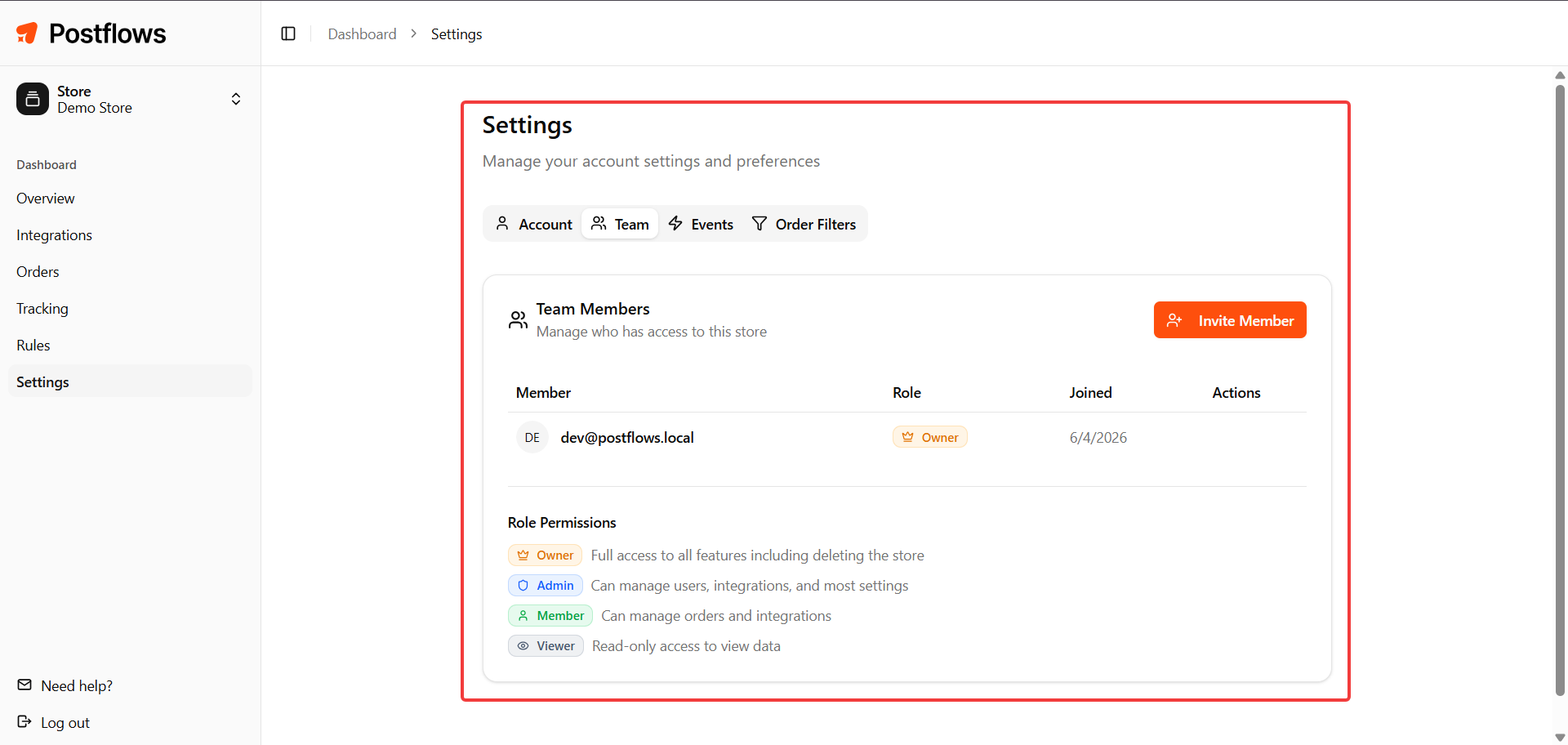
Go to Settings in the sidebar
Select the Team tab
Click Invite Team Member
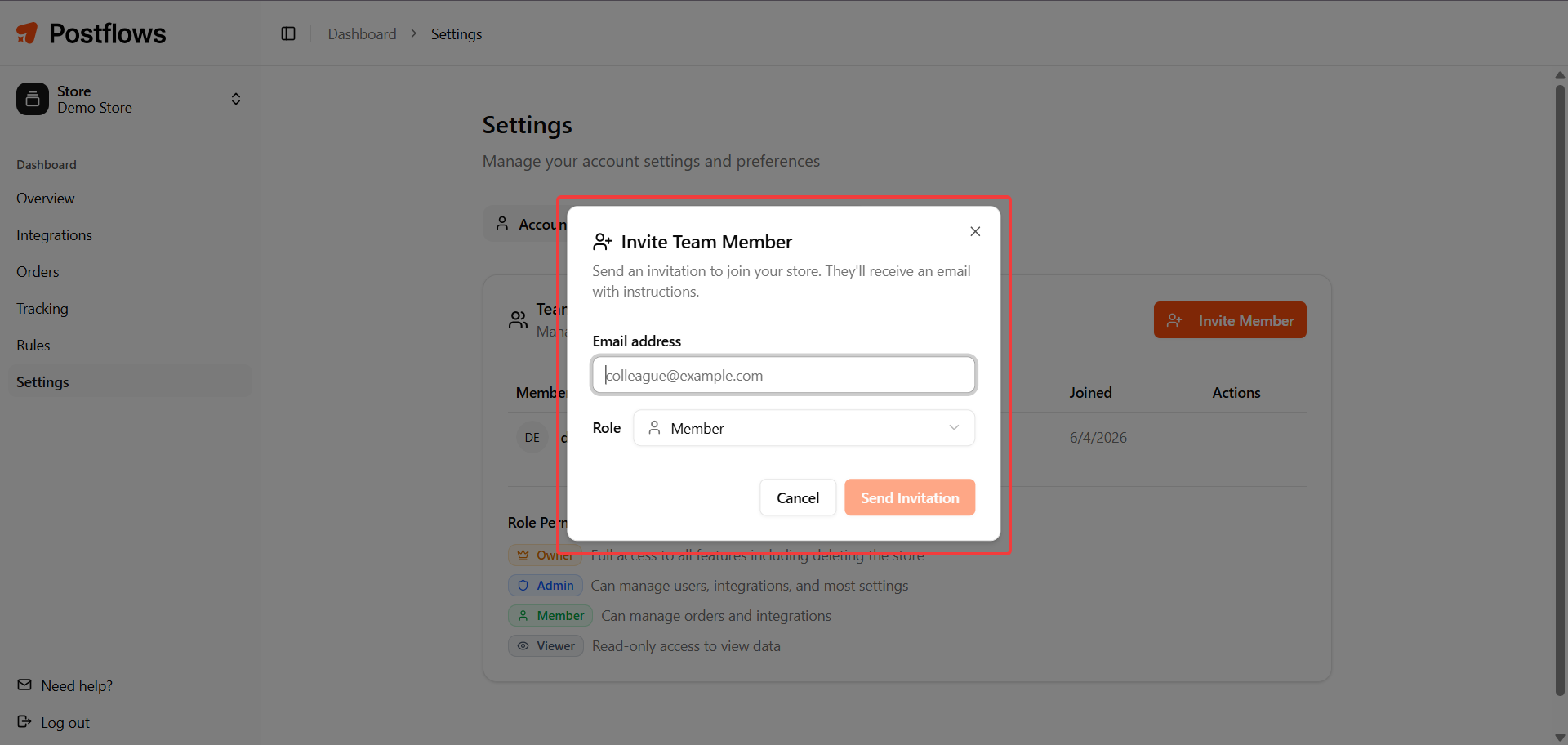
Enter the person's email address
Select a role (Admin, Member, or Viewer)
Click Send Invitation
If the person already has a Postflows account, they're added to the store immediately. If not, they'll receive an invitation email to create an account.
Note: Only Owners and Admins can invite team members. If you don't see the invite option, contact your store owner.
Seat limits
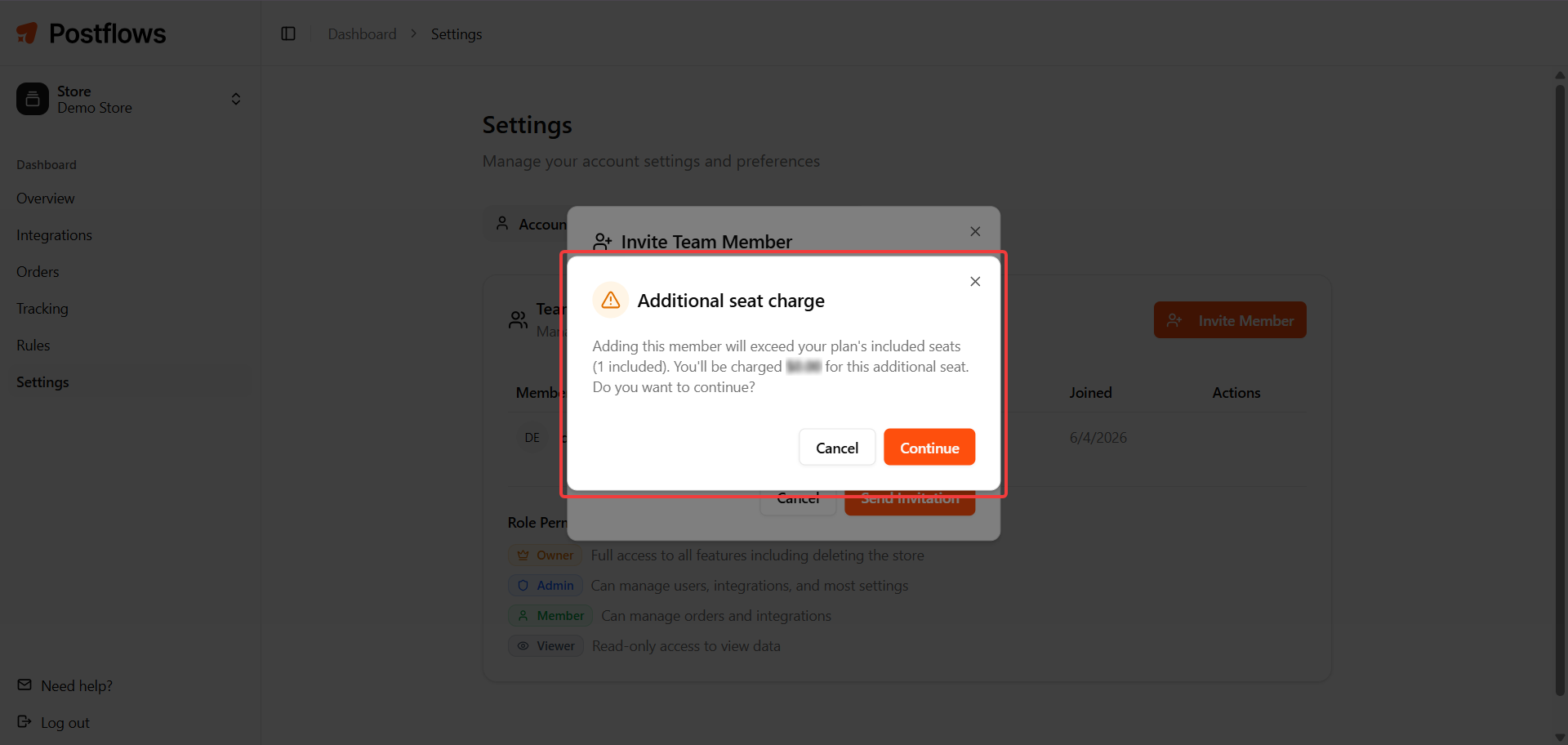
Depending on your plan, there may be a limit on the number of included seats. If adding a member would exceed your plan's included seats, a confirmation dialog will appear showing the additional charge before you proceed.
Changing a member's role
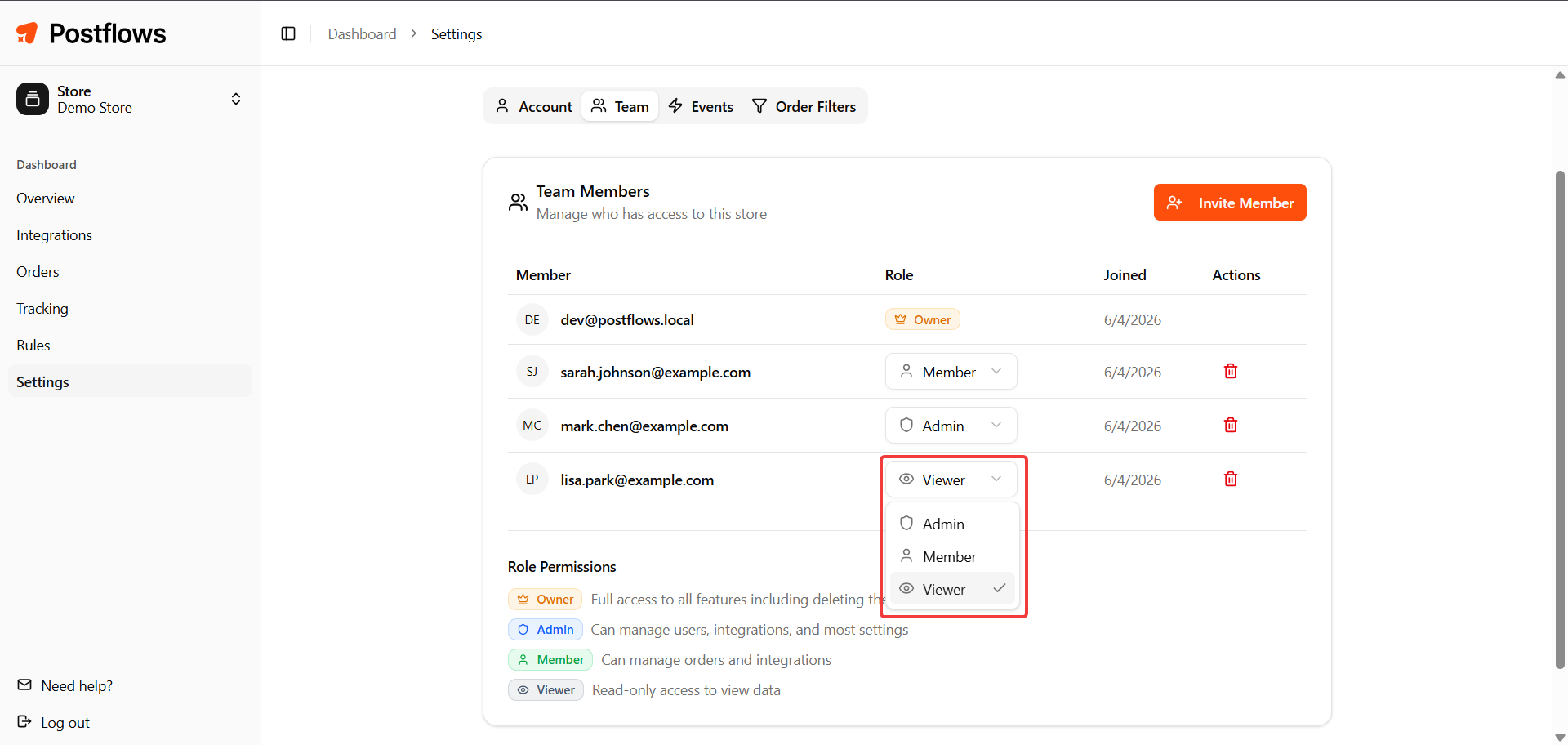
Go to Settings > Team
Find the member in the table
Click their current role and select a new one from the dropdown
Role changes take effect immediately.
Who can change roles:
Owners can change any member's role
Admins can change Member and Viewer roles, but not other Admins
Removing a team member
Go to Settings > Team
Find the member in the table
Click the remove button next to their name
Confirm the removal in the dialog
The member loses access immediately. The Owner role cannot be removed.
Note: Owners and Admins can remove members. Admins cannot remove other Admins or the Owner.
What Viewers see
Viewers have read-only access. When a Viewer tries to perform an action that requires edit permissions, they'll see:
"You have view-only access to this store. Contact the store owner to request edit permissions."
Related articles
Was this helpful?
Still need help? Share an idea