4. Cancellation and Data Retention
This article covers how to cancel your Postflows subscription, what happens to your data, and the difference between cancelling a subscription and deleting your store.
Cancelling your subscription
Go to Settings in the sidebar
Select the Billing tab
In the Subscription Details section, click Cancel Subscription
A confirmation dialog appears showing your current billing period end date
Confirm the cancellation
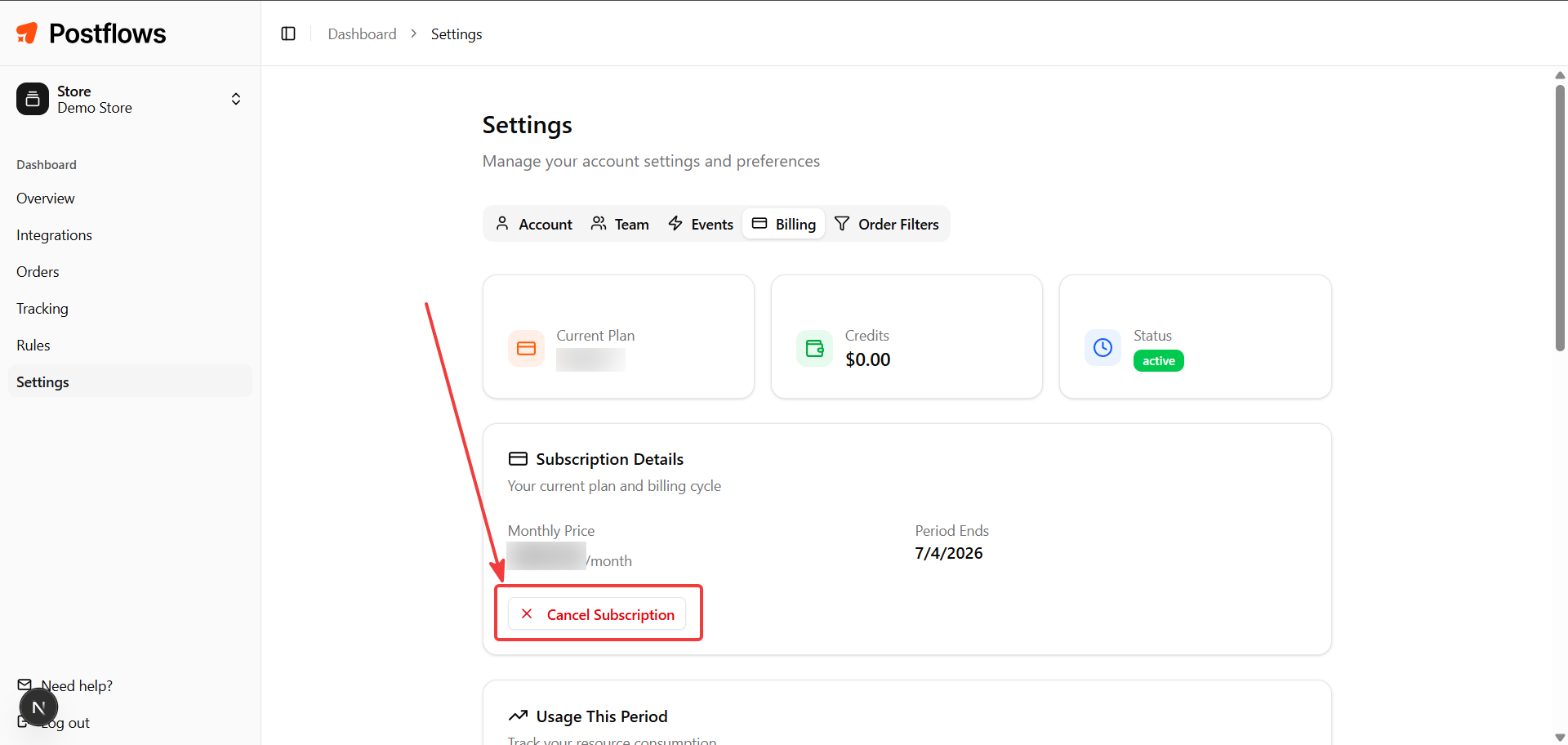
Only the store Owner or Admin can cancel a subscription.
What happens when you cancel
Cancelling via Shopify
You can also cancel by uninstalling the Postflows app from your Shopify admin (Apps > Postflows > Delete). This automatically cancels your subscription and deactivates your store in Postflows. Your data is still retained.
See Uninstalling Postflows for details on what the uninstall process does.
Resubscribing after cancellation
To restart your subscription after cancelling:
Go to Settings > Billing
Select a plan in the Change Plan section
Approve the new charge in Shopify
Your previous data (orders, settings, rules) is still there and becomes active again immediately.
Data retention policy
Postflows retains your store data indefinitely after cancellation. This includes:
Order and fulfillment history
Event logs
Billing history
Rules and settings
Team member access
Your data is only removed if you explicitly delete your store.
Permanently deleting your store data
Cancelling a subscription does not delete your data. To permanently remove all store data from Postflows:
Warning: This action is permanent and cannot be undone. All data for this store will be deleted and your Shopify subscription will be cancelled.
Go to Settings > Account
Scroll to the Danger Zone section
Click Delete Store
Confirm the deletion
Only the store Owner can perform this action.
Note: Deleting your store in Postflows does not uninstall the app from Shopify. Remove it from your Shopify admin separately if needed.