5. Uninstalling Postflows
This article covers what happens when you remove Postflows from your Shopify store, and the difference between uninstalling the app and deleting your store data.
Uninstalling from Shopify
To uninstall Postflows:
In your Shopify admin, go to Apps
Find Postflows and click Delete
Confirm the removal
What happens when you uninstall
Postflows does not permanently delete your data when you uninstall. If you reinstall later, everything is restored. See Reconnecting or Reinstalling.
Permanently deleting your store data
If you want to permanently remove all your data from Postflows - not just uninstall the app - you can delete the store from within the dashboard.
Warning: This action is permanent and cannot be undone. All orders, settings, rules, and history for this store will be deleted. Your active Shopify subscription will also be cancelled.
To delete your store:
Go to Settings in the sidebar
Select the Account tab
Scroll to the Danger Zone section
Click Delete Store
Confirm the deletion
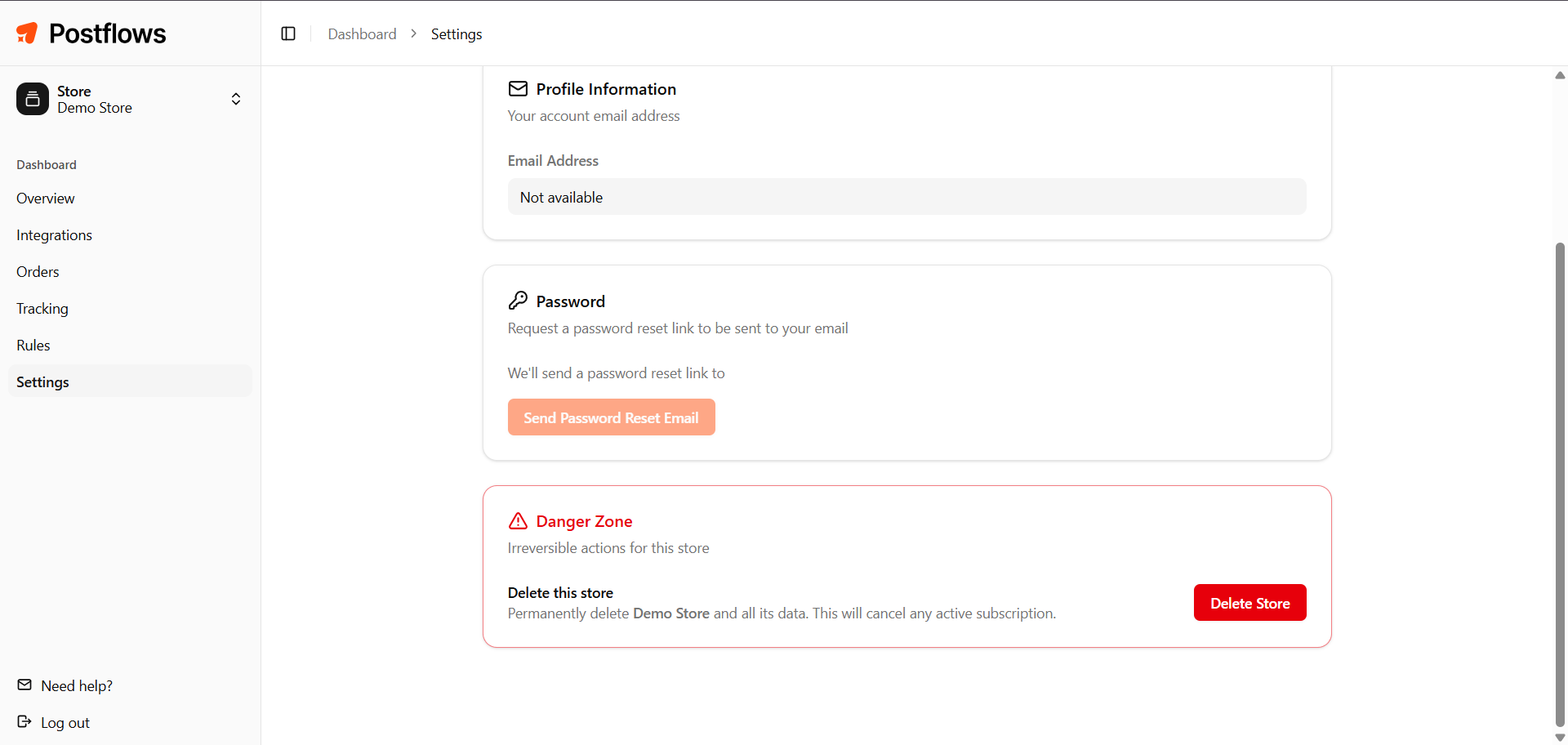
Only the store Owner can perform this action.
Note: Deleting the store in Postflows does not uninstall the app from Shopify. You should also remove it from your Shopify admin if you no longer want it installed.
GDPR data deletion
If a customer submits a data deletion request through Shopify, Postflows receives and processes it automatically in compliance with GDPR requirements. You do not need to take any action.